
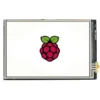
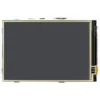
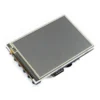
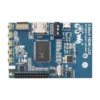
Description
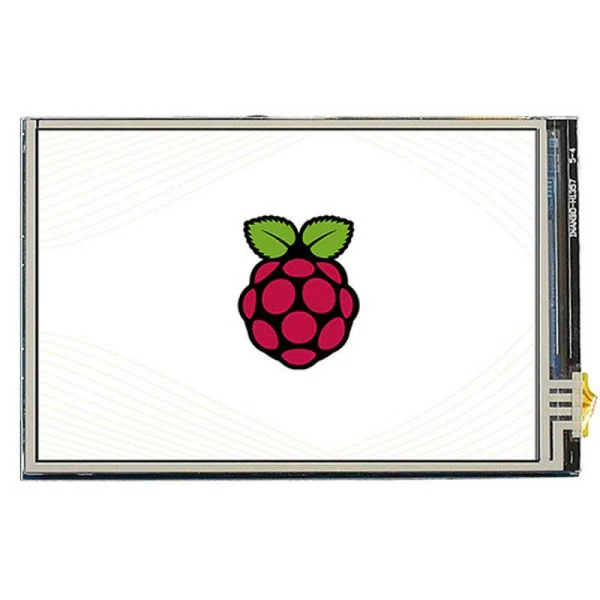
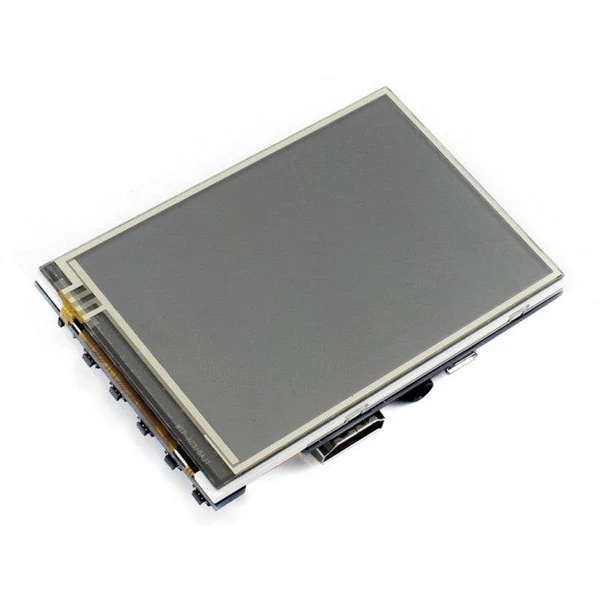
- 3.5inch IPS screen, 480 x 320 hardware resolution, which can be set by the software (up to 1920×1080).
- Resistive touch control.
- Compatible and Direct-connect with any revision of Raspberry Pi. (If you are using a Raspberry Pi Zero / Zero 2 W, an additional HDMI cable is required.)
- Supports Raspberry Pi OS / Ubuntu / Kali and Retropie systems.
- Also works as a computer monitor, in this case, the touch panel is unavailable and HDMI cable is required.
- When only used for display, does not occupy any I/O resources (using touch function will occupy I/O resources).
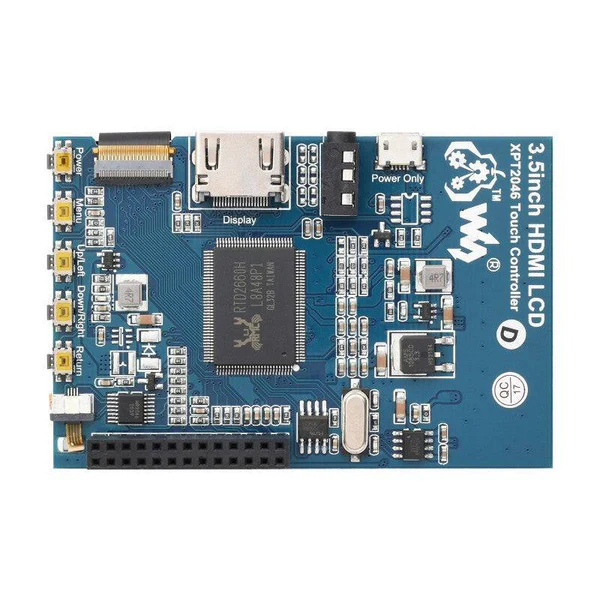
- Multi-languages OSD menu, for power management, brightness/contrast adjustment, etc.
- Supports HDMI audio output.
Description :
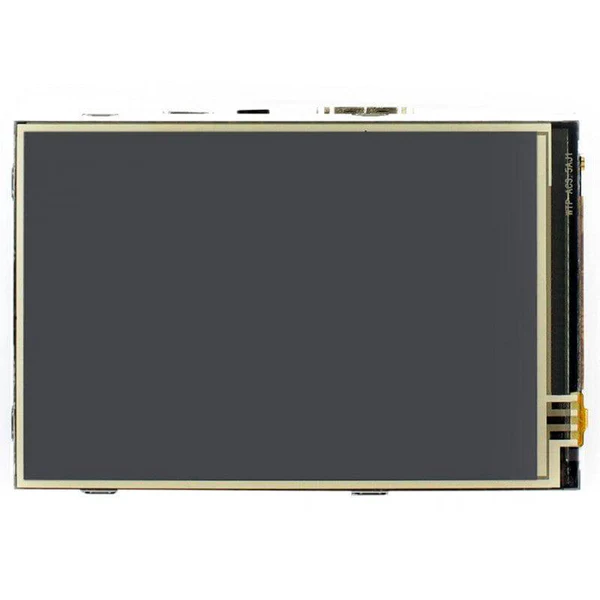
480 x 320, 3.5inch Resistive Touch Screen LCD, HDMI interface, IPS Screen, Designed for Raspberry Pi.
Features
- 3.5inch IPS screen, 480 x 320 hardware resolution, which can be set by the software (up to 1920×1080).
- Resistive touch control.
- Compatible and Direct-connect with any revision of Raspberry Pi. (If you are using a Raspberry Pi Zero / Zero 2 W, an additional HDMI cable is required.)
- Supports Raspberry Pi OS / Ubuntu / Kali and Retropie systems.
- Also works as a computer monitor, in this case, the touch panel is unavailable and HDMI cable is required.
- When only used for display, does not occupy any I/O resources (using touch function will occupy I/O resources).
- Multi-languages OSD menu, for power management, brightness/contrast adjustment, etc.
- Supports HDMI audio output.
Hardware Connection
1. Connect the GPIO interface
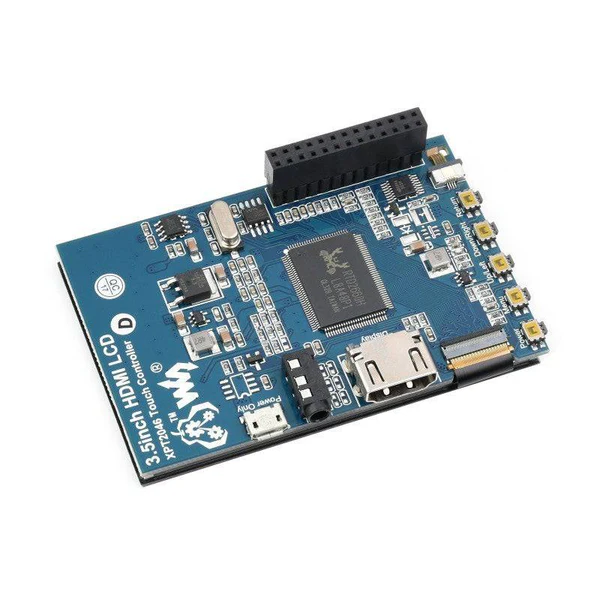
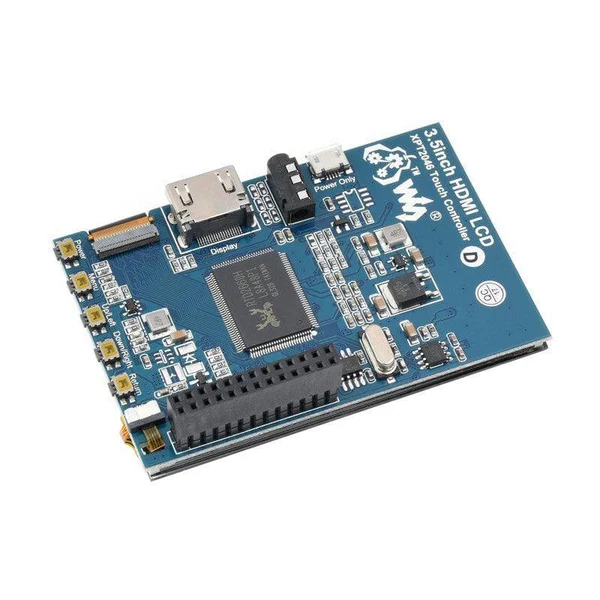
Raspberry Pi leads out 40 GPIO pins, while the screen leads out 26 pins. When connecting, pay attention to the corresponding pins and Raspberry Pi pins.
2. Connect the HDMI connector to the HDMI port of the screen and the Pi.
3. Turn the Backlight on the back of the LCD to “ON”.
Note: Raspberry Pi Zero / Zero 2 W needs an additional HDMI cable for connection.
The hardware connection is as shown below (Pi 4 and Pi 3B+):
Software Setting
This LCD can support Raspberry Pi OS / Ubuntu / Kali / Retropie systems.
Please download the latest version of the image on the Raspberry Pi official website.
1) Download the compressed file to the PC, and unzip it to get the .img file.
2) Connect the TF card to the PC, use SDFormatter software to format the TF card.
3) Open the Win32DiskImager software, select the system image downloaded in step 1, and click ‘Write’ to write the system image.
4) After the image has finished writing, open the config.txt file in the root directory of the TF card, add the following code at the end of config.txt, then save and quit the TF card safely.
hdmi_group=2
hdmi_mode=87
#Display with 800*480 resolution
hdmi_cvt 800 480 60 6 0 0 0
#Use 480*320 resolution display, you need to add the following 3 lines of code
#hdmi_pixel_freq_limit=20000000
#hdmi_cvt 480 320 60 6 0 0 0
#hdmi_drive=1
dtoverlay=ads7846,cs=1,penirq=25,penirq_pull=2,speed=50000,keep_vref_on=0,swapxy=0,pmax=255,xohms=150,xmin=200,xmax=3900,ymin=200,ymax= 3900
5) Insert the TF card into the Raspberry Pi, power on the Raspberry Pi, and wait for more than 10 seconds to display normally. But the touch is abnormal at that time, and the touch needs to be calibrated as the following steps.
Note: Raspberry Pi OS Bullseye branch system, since dtoverlay=vc4-kms-v3d is loaded by default, it is invalid to modify the resolution in /boot/config.txt. If you need to modify the resolution, you need to change it to dtoverlay=vc4-fkms -v3d.
Touch calibration
The display can be calibrated via xinput-calibrator.
1. Execute the following command to install the relevant software:
sudo apt-get install xserver-xorg-input-evdev xinput-calibrator
If the execution fails, you can check here#Some possible problems
2. Execute the following commands:
sudo cp -rf /usr/share/X11/xorg.conf.d/10-evdev.conf /usr/share/X11/xorg.conf.d/45-evdev.conf
sudo nano /usr/share/X11/xorg.conf.d/99-calibration.conf
Add the following code to 99-calibration.conf:
Section "InputClass"
        Identifier      "calibration"
        MatchProduct    "ADS7846 Touchscreen"
        Option  "Calibration"   "190 3991 243 3895"
        Option  "SwapAxes"      "0"
        Option "EmulateThirdButton" "1"
        Option "EmulateThirdButtonTimeout" "1000"
        Option "EmulateThirdButtonMoveThreshold" "300"
EndSection
3. After reboot, touch will work normally under normal circumstances. But for different resistance screens, the accuracy of using the default calibration parameters may not be very suitable.
You can perform touch calibration by clicking the Raspberry Pi icon on the taskbar, selecting Preferences -> Calibrate Touchscreen, and following the displayed prompts.
4. After calibration, the following data will be displayed. If you want to save these touch values, you can replace the data in the red circle with the data in the corresponding position in 99-calibration.conf.
Package Included:
- 3.5inch HDMI LCD x1
- HDMI to micro HDMI connector x1
- HDMI connector x1
- Stylus x1
- Aluminium heat sink x1
- Quick start sheet x1


 Bambu Lab TPU 95A HF 1.75mm 3D Filament Yellow
  EMAX D-SHOT Bullet 6A ESC Bullet Series 6A BLHeli-S Dshot ESC For Onshot42 2S FPV Racing Drone Built-in Programmable RGB LED For RC FPV Drone Quadcopter
  Waveshare 7" Resistive Touchscreen LCD 1024×600 Multi-Purpose Touch Display With HDMI, IPS Compatible With Raspberry PI & Various Systems
  Radiolink CM210 LiPo Battery Balance Charger CM210 20W 1.5A Faster 2S 7.4V LiPo Battery Balance Charger USB Type-C Connector for RC Airplane Transmitter Car Boat SCX24 SCX10 Gel Blaster Gun
  N20 Gear Motor 3-9V 600RPM High Torque Gear Motor 14mm Shaft Micro DC Gear Motor Versatile N20 Metal Gear Motor
  Raspberry Pi Compute Module 4 - CM4102008- 2GB RAM - 8GB eMMC - Wireless
  Raspberry Pi Zero V1.3 Single-Core CPU Support Micro USB Power, Camera And Micro SD Card
  USB Mini Discharge Load Resistor 2A/1A USB Mini Discharge Load USB Mini Discharge Load Resistor 2A/1A With Switch 1A Green led, 2A Red led Integrated Circuits
  Raspberry Pi 5 Single Board Computer with 2.4GHz quad-core, 64-bit Arm Cortex-A76, and LPDDR4X-4267 SDRAM 2GB
  UW 01 Washing/Curing Machine
  Generic Micro Endstop Switch Micro Switch Mechanical End Stop AC 250V 5A SPDT Miniature NO/NC Switch For Reprap 3D Printer/CNC/DIY
  470uF 63V Electrolytic Capacitor
Reviews
There are no reviews yet.